Setup a Server:
- Download the zip file from this link and follow the below steps to install the server.
- Copy and paste the zip file to your desired location and unzip it there. In this example, I am doing it in D Drive (D:\).
- After unzipping go to the bin folder and copy the complete folder path. In this example, it is – D:\oracle\bin.
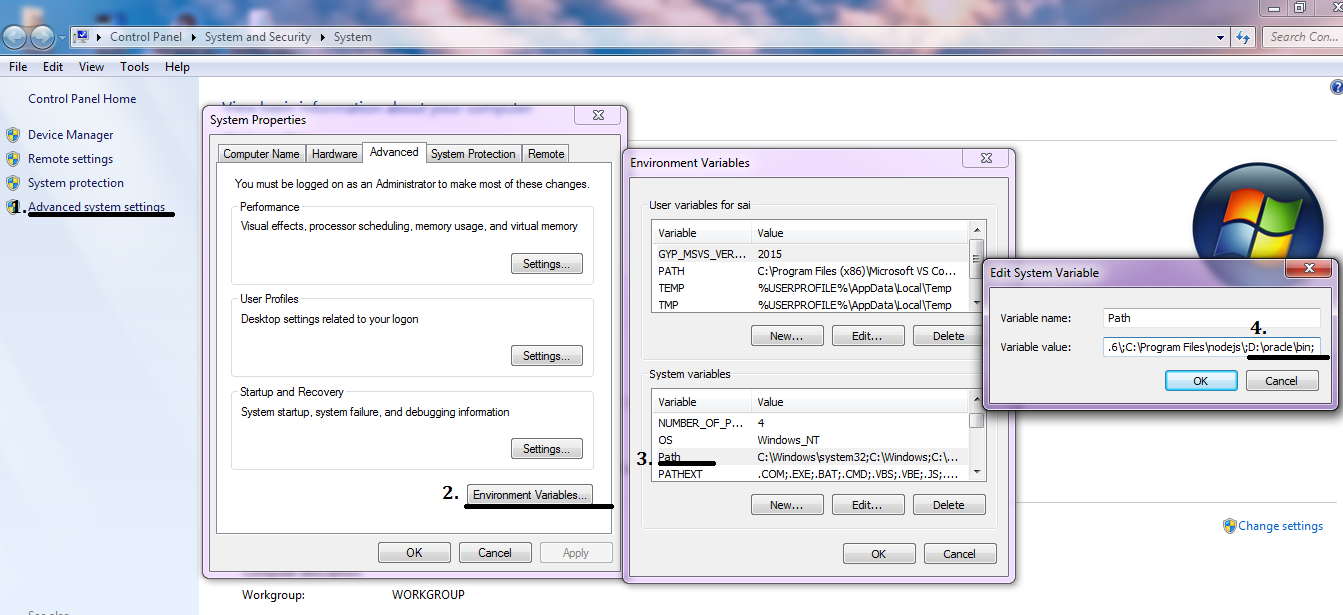
- Go to Computer Properties, Click Advanced System Settings. A popup will appear and click on the Environment Variables button.
- Under System Variable, select the path option, click add new and paste the above path here. and click OK.
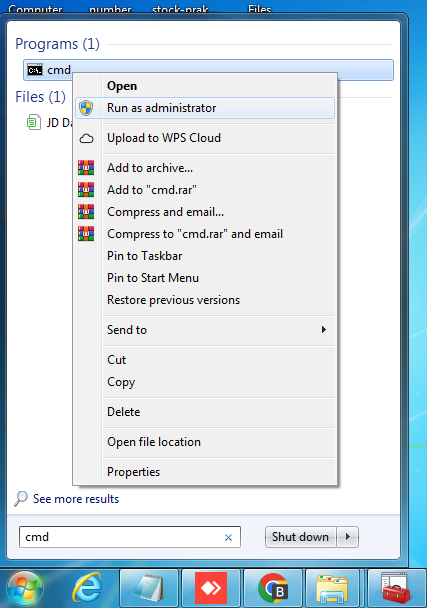
- Now open Command Prompt as administrator.
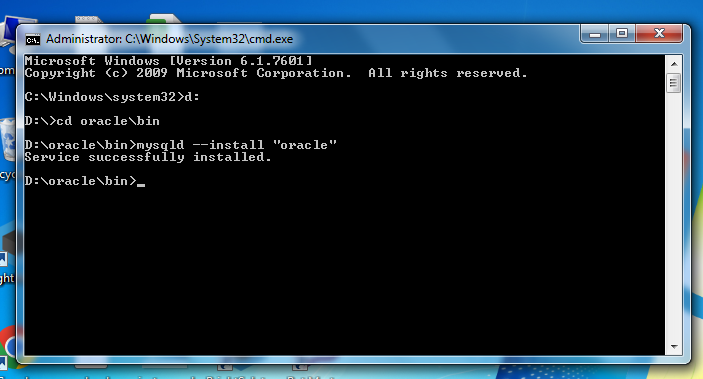
- Go to the above folder path. By typing D: and pressing enter.
- And then type cd oracle\bin and type enter.
- To start your server type – mysqld install ‘oracle’ and your server setup is done.
Install the Application:
- Download the application from this link. and save it at your desired location. I am keeping it to D:\MunimJi.
- Run the application.
Initial Data Import:
- Once you see the login screen, it means your installation is done. But wait, you’re still 1 step behind to start your work.
- Download the database file from this link.
- Go to the software and press (Ctrl + F6).
- You can see an option to import a database file.
- Paste your previously download database file path here and click Import.
- Once, the database import is done you can see a message that the database is imported successfully.
- The default username is admin and the password is 12345678.
- After login, an installation form will appear, Fill it and your installation is done.
Congratulations! Now you can start using MunimJi software for your retail store.